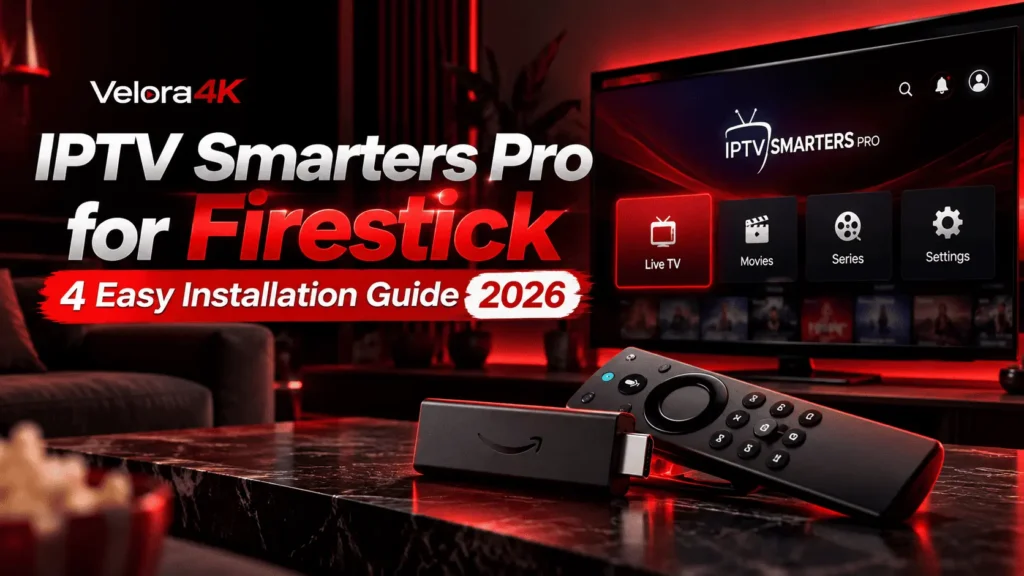
IPTV Smarters Pro for Firestick: 4 Easy Installation Guide (2026)

Trying to install IPTV Smarters Pro for Firestick but cannot find it in the Amazon Appstore? You are not alone. The installation process can be confusing, especially if this is your first time using a streaming player on a Fire TV device.
The good news is that setting up a compatible IPTV player is usually straightforward once you understand the steps. In this guide from Velora4K, you will learn how to prepare your Firestick, install IPTV Smarters Pro, connect an M3U playlist or Xtream Codes account, and fix common problems.
Whether you own a Fire TV Stick Lite, Fire TV Stick 4K, Fire TV Stick 4K Max, or Fire TV Cube, this beginner-friendly tutorial will help you understand the process.
| Attribute | Details |
|---|---|
| Topic | How to Install IPTV Smarters Pro on Firestick |
| Level | Beginner — no technical experience required |
| Devices Covered | Fire TV Stick Lite, Fire TV Stick (3rd Gen), Fire TV Stick 4K, Fire TV Stick 4K Max, Fire TV Cube |
| What You Need | A compatible Firestick, a stable internet connection, a verified app download, and an IPTV subscription or M3U playlist |
In This Guide
What Is IPTV Smarters Pro for Firestick?
IPTV Smarters Pro is a media player that organizes compatible IPTV content in one interface. Depending on the version, it can display live TV channels, electronic program guide (EPG) information, movies, and series provided through a compatible playlist or account.
One important detail: IPTV Smarters Pro does not provide TV channels or a subscription by itself. You need a compatible playlist or account from a provider authorized to distribute the content you want to watch.
The player commonly supports two connection methods:
- Xtream Codes API: You enter a username, password, and server URL supplied by your provider.
- M3U playlist: You load a playlist using its complete URL.
Once the connection is configured, the available content and features depend on your provider and the application version.
Does IPTV Smarters Pro Work on Firestick?
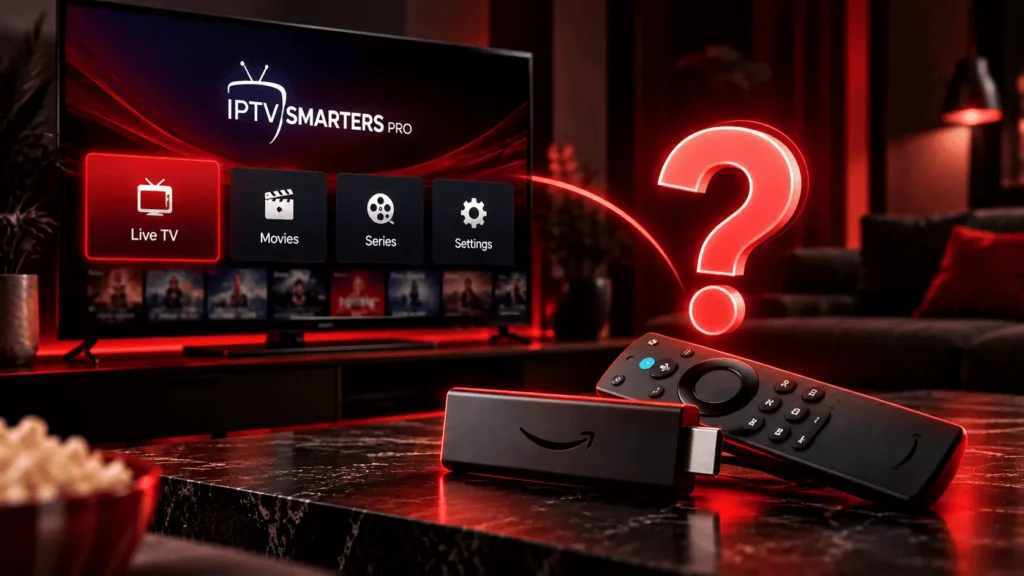
IPTV Smarters Pro may work on compatible Fire TV devices, but availability and installation options can change depending on the device model, Fire OS version, and application release.
Here are some common Fire TV devices to consider:
| Fire TV device | What to know |
|---|---|
| Fire TV Stick Lite | Designed for HD streaming |
| Fire TV Stick (3rd generation) | Supports compatible streaming applications |
| Fire TV Stick 4K | Supports compatible 4K content |
| Fire TV Stick 4K Max | Offers additional hardware capabilities |
| Fire TV Cube | Supports compatible apps and may offer wired networking, depending on the model |
Remember that a device capable of 4K output does not guarantee that every stream will play in 4K. Your content source, internet connection, and application compatibility also matter.
To identify your device, open Settings → My Fire TV → About. Menu labels may vary across Fire OS versions.
What You Need Before Installing IPTV Smarters Pro
Before starting the IPTV Smarters Pro for Firestick installation, make sure you have three things ready.
A stable internet connection
A connection around 15 Mbps may be sufficient for one HD stream, while 25 Mbps or more is a reasonable starting point for 4K. Actual requirements depend on the stream’s bitrate and other devices using your network.
Speedtest by OoklaYour IPTV account details
Keep your M3U playlist URL or Xtream Codes credentials nearby. Make sure your account is active and that your provider supports your intended device.
A compatible installation method
If the application is not available in your device’s official app store, you may need an installation utility such as Downloader. Only use verified application sources and packages compatible with your Firestick.
How to Install IPTV Smarters Pro for Firestick
Follow these steps in order. The exact settings may differ depending on your Fire OS version.
Step 1: Open Developer Options
From your Firestick home screen:
- Open Settings.
- Select My Fire TV.
- Look for Developer Options.
If Developer Options is missing, open About and select your Fire TV device name repeatedly until a message confirms that developer options are enabled. Return to the previous menu.
Some newer Fire TV devices have different restrictions, so this method may not work on every model.
Step 2: Allow Installation From Unknown Sources
If your device supports sideloading, open the relevant developer or app-installation settings and allow installations for the specific utility you intend to use.
For example, some Fire TV versions offer an Install Unknown Apps setting that lets you grant permission to individual applications.
Only enable permissions when necessary. Installing applications outside an official store carries additional security risks.
For more information, consult Amazon’s Fire TV app installation documentation.
Step 3: Install Downloader
Downloader is an application that can retrieve files from a web address and help you install compatible downloads.
- Return to the Firestick home screen.
- Open the Amazon Appstore.
- Search for Downloader.
- Select the appropriate application and install it.
- Open the app and grant only the permissions it needs.
If Downloader is unavailable on your device, check Amazon’s official guidance for compatible installation options.
Step 4: Download IPTV Smarters Pro
Open Downloader and enter the verified download address for IPTV Smarters Pro, if an official compatible package is available.
Then:
- Select the appropriate download for your device.
- Wait for the file to finish downloading.
- Review the installation prompt.
- Confirm the installation if you have verified the package and its source.
Avoid websites advertising modified, unlocked, or premium versions of IPTV Smarters Pro. Unverified installation files can contain unwanted software or request unnecessary permissions.
If you cannot find a compatible official download, check the application’s verified distribution channels instead of downloading a random APK.
Step 5: Launch the Application
After installation, return to the Fire TV home screen and open your installed applications.
Select IPTV Smarters Pro and follow the on-screen instructions. Depending on the version, you may need to accept the terms before adding a playlist or account.
If the application does not appear, open your installed-apps library and check whether the installation completed successfully.
Step 6: Log In With Xtream Codes or an M3U Playlist
Once IPTV Smarters Pro opens, select the login method supported by your application and provider.
Option 1: Xtream Codes API
Enter the details supplied by your provider:
- Profile name: Choose any name you like.
- Username: Enter your assigned username.
- Password: Enter your assigned password.
- Server URL: Enter the complete server address, including the port if required.
Check every field before submitting. An incorrect server address or password can prevent the connection from working.
Option 2: M3U Playlist
If your provider supplies an M3U URL:
- Select the M3U playlist or playlist URL option.
- Enter a profile name.
- Paste the complete playlist URL.
- Submit the details and wait for the playlist to load.
Avoid sharing your playlist URL or login credentials publicly. They may provide access to your account.
Step 7: Wait for Channels and Guide Data to Load
After a successful login, the player may need some time to retrieve channel lists, categories, and EPG information.
Large playlists can take longer than smaller ones. Wait for the initial loading process to finish before restarting the application.
If your account connects but some content is missing, check with your provider to confirm what your subscription includes.
How to Fix Common IPTV Smarters Pro Problems on Firestick
Even when the installation goes smoothly, you may encounter login errors, buffering, missing guide data, or slow performance. Here are some ways to troubleshoot these issues.
IPTV Smarters Pro Says Failed to Authorize
This error may indicate incorrect login details, an expired subscription, a server problem, or a connection limit.
Try these checks:
- Re-enter your username and password carefully.
- Confirm that the server URL and required port are correct.
- Check whether your subscription is still active.
- Verify that your plan allows the number of simultaneous connections you are using.
- Contact your provider if the details are correct but login still fails.
The EPG Is Empty or Shows Incorrect Times
The electronic program guide depends on the information supplied by your provider and how it is configured.
If the guide is empty, confirm that your provider supplies EPG data and that the playlist has loaded correctly.
If programs appear at the wrong times, review the timezone or EPG time-shift settings available in your application.
IPTV Smarters Pro Keeps Buffering
Buffering can result from weak Wi-Fi, network congestion, device limitations, or problems with the streaming source.
Try the following:
- Move your Firestick closer to your router.
- Test a less congested Wi-Fi band if available.
- Pause other downloads and bandwidth-heavy activities.
- Restart your router and Firestick.
- Test another compatible stream to see whether the issue affects all content.
If buffering happens mainly in the evening, network congestion or problems with the streaming server may be responsible. Changing application settings will not necessarily fix a problem outside your device.
IPTV Smarters Pro Crashes or Runs Slowly
Start with the basic troubleshooting steps:
- Open Fire TV Settings.
- Select Applications.
- Choose Manage Installed Applications.
- Select IPTV Smarters Pro.
- Choose Clear Cache.
Avoid selecting Clear Data unless you understand the consequences, because it may remove locally stored settings and login information.
You should also check available storage and install software updates when appropriate.
IPTV Smarters Pro Will Not Install
An installation failure may indicate an incompatible package, insufficient storage, a corrupted download, or device restrictions.
Confirm that the package supports your Firestick and Fire OS version. If the download came from an unverified source, delete it and look for a trusted distribution channel.
Not every Fire TV device supports the same sideloading options, so check the official documentation for your specific model.
Is IPTV Smarters Pro Legal and Safe?
The legality of an IPTV player and the legality of a particular streaming service are separate questions.
A media player does not automatically make every stream lawful. Providers need the appropriate rights or authorization to distribute the channels and copyrighted content they offer.
Before paying for an IPTV subscription, review the provider’s terms, refund policy, contact information, and statements about content licensing. Be cautious of services that make unverifiable claims or cannot explain their distribution rights.
Sideloading also has security risks. Download applications only from verified sources, keep your Fire TV software updated, and avoid granting unfamiliar applications unnecessary permissions.
Pros and Cons of IPTV Smarters Pro for Firestick
Advantages
- Supports common IPTV connection methods, depending on the version.
- Organizes compatible live TV and on-demand content.
- Can run on supported Fire TV devices.
- Separates the player from the content service you choose.
Limitations
- Availability through official app stores can vary.
- Sideloading may require additional steps.
- Features and interface options differ between versions.
- Playback quality depends on your device, network, content source, and provider.
- A compatible playlist or account is required for provider-supplied content.
Frequently Asked Questions
Is IPTV Smarters Pro for Firestick free?
Pricing and available features depend on the version and distribution channel. Check the application’s official listing for current information. Any IPTV subscription you use is a separate cost.
Can I use IPTV Smarters Pro without a subscription?
You can install and open a compatible player without subscribing to a service, but the application does not provide its own collection of live channels. Access to provider-supplied content generally requires a valid playlist or account.
Does IPTV Smarters Pro work on Firestick 4K and 4K Max?
It may work on compatible models, provided the application package supports your device and software version. The resolution you receive depends on the source and playback setup.
Is sideloading safe on Firestick?
Sideloading is a way to install applications outside an official app store. Its safety depends on the source of the application, the permissions it requests, and whether the installation file has been tampered with.
Do I need a VPN to use IPTV Smarters Pro?
A VPN is not inherently required to install or use a media player. Whether you need one depends on your privacy preferences, network restrictions, and applicable laws. A VPN does not grant permission to access copyrighted content.
Why are my channels missing after login?
Your playlist may be incomplete, your subscription may not include the missing channels, or the application may still be loading content. Check your account details and contact your provider if necessary.
Final Thoughts
Installing IPTV Smarters Pro for Firestick is generally straightforward when you have a compatible device, a verified application package, and the correct login details.
Prepare your device, follow the appropriate installation steps, and connect your M3U playlist or Xtream Codes account. If something goes wrong, check the download source, device compatibility, credentials, and internet connection before changing advanced settings.
For a smoother streaming experience, keep your device updated and choose providers that can demonstrate their authorization to distribute the content they offer.
One Response