
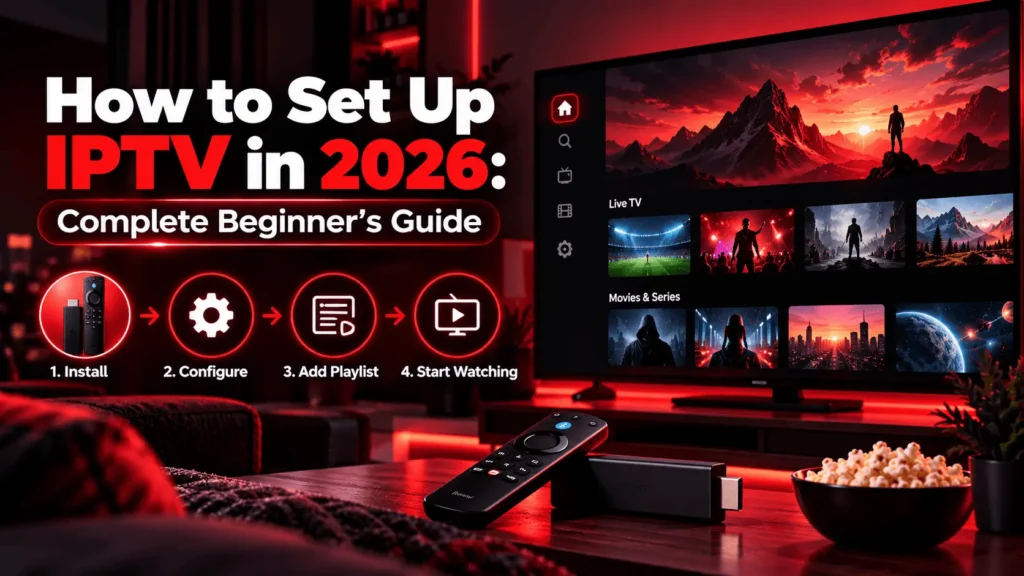
How to Set Up IPTV in 2026: Complete Beginner’s Guide

Setting IPTV up trips people up not because any single step is hard, but because four or five small things all have to line up at once. You need a real service behind it, an app that can actually read what that service sends, a device the app runs on, and login details typed in without a single mistake. Get one of those wrong and the whole thing looks broken even though nothing is actually broken, you’re just missing a piece.
IPTV itself is a simple idea: TV delivered over an internet connection rather than a satellite dish or a coaxial cable. Setting IPTV up is the practical side of that idea, connecting an app to that internet-delivered content on whatever screen you’re using.
This guide breaks down what setting IPTV up actually takes: what you need on hand first, how a service is different from the app you use to watch it, what M3U and Xtream Codes mean, how the steps shift depending on your device, and which settings are worth checking once everything’s connected.
| Attribute | Details |
|---|---|
| Topic | Setting IPTV |
| Level | Beginner |
| Devices Covered | Firestick, Fire TV, Android TV, Smart TV, iPhone, Android, PC, Mac, MAG, Enigma2 |
| What You Need | A legitimate IPTV service, compatible player app, supported device, stable internet connection, and correct login or playlist details |
In This Guide
What does setting IPTV up actually involve?
Strip away the jargon and setting IPTV up comes down to three moving parts working together. There’s the content source, whatever service is actually sending you channels and shows. There’s the player, the app on your device that turns that content into something watchable. And there’s the device itself, which has to support the app you’re trying to run.
None of these three pieces do anything on their own. A great app with nothing feeding it just sits there empty. A great service with no compatible app has nowhere to display. And the fastest device in the world can’t fix either problem. Setting IPTV up successfully just means getting all three pointed at each other correctly.
The essentials you need before you start
Before setting IPTV up, get these five things sorted, since missing even one is usually the reason people end up frustrated and troubleshooting something that was never going to work.
First, a legitimate content source. That means a provider that’s upfront about what it carries and where its content rights actually come from, not just a promise of “everything for a low price.” Second, a player app installed on whatever you’re watching on, since IPTV doesn’t run through a built-in tuner the way antenna TV does.
Third, hardware that actually supports IPTV playback: a streaming device, a smart TV, a phone, or a computer. Fourth, an internet connection steady enough to carry live video, which matters more here than it does for a lot of other online activities. And fifth, correct login credentials or playlist details from whoever’s providing your content, whether that’s a straightforward M3U link or a full Xtream Codes login.
Skip the first item and nothing else on this list saves you. A fast connection and a polished app don’t make up for a source that isn’t actually licensed to distribute what it’s sending you.
Service or player: knowing the difference matters
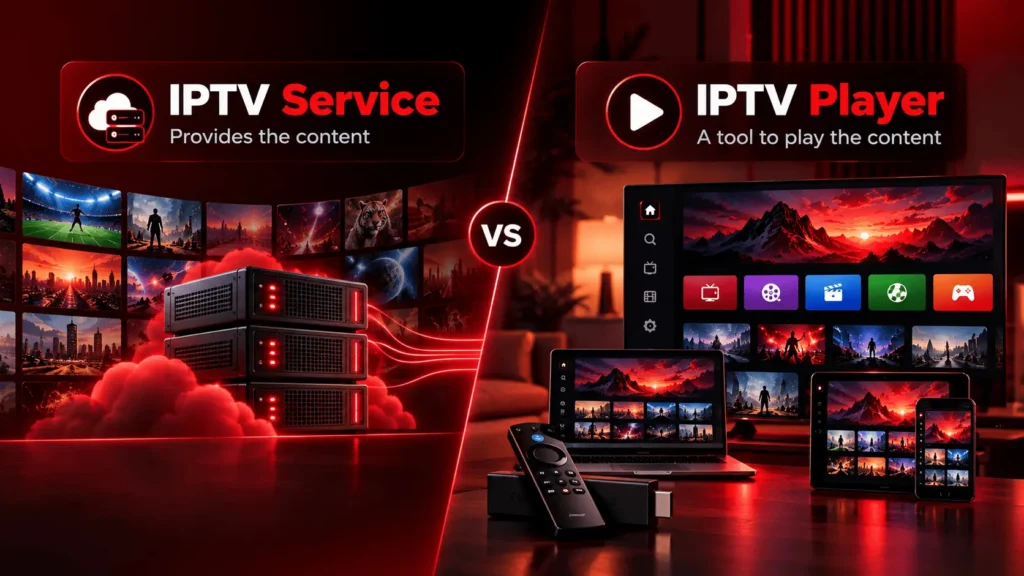
A huge share of setup confusion comes from treating the service and the player as the same thing when they’re not. The service is whoever supplies the actual content, the channel lineup, any on-demand library, and the account details tied to your subscription. The player is just the software that displays whatever the service hands it.
One is useless without the other. Install VLC, IPTV Smarters, or TiviMate and you’ll find an app with zero channels built in. Setting IPTV up means pointing that empty app at a real source using a playlist link or login credentials, and only then does anything show up on screen.
This is exactly where people get stuck: they install a working app, open it, see nothing, and assume the app is broken. Usually it’s not. It’s just waiting for a service to connect to. Providers that show their subscription options plainly on their own site, Velora4K among them, are a reasonable place to start if this is the piece you’re missing.
VLC in particular is worth knowing for testing purposes. It handles most common IPTV stream formats without any real configuration, which makes it a fast way to confirm whether a playlist link is actually valid before you go troubleshoot anything more complicated. The official VLC site has the current download for whichever platform you’re on.
M3U and Xtream Codes explained simply
Two terms come up constantly once you start setting IPTV up, and neither one describes a type of content, they’re just the technical method a provider uses to hand off its channel list.
An M3U playlist is a plain text file, a list of stream URLs, one per channel or piece of content. You load the file, or a link to it, into a compatible player, and the app reads through it and builds a channel list from what it finds. It’s a simple format, which is exactly why it’s stayed common for so long.
Xtream Codes works differently. Rather than a static file you download once, it’s login-based: you hand over a username, password, and server address, and the app pulls the current lineup, on-demand catalog, and program guide straight from the provider’s server every time you open it. That tends to stay fresher than a static M3U file, since updates happen on the provider’s end automatically instead of requiring you to grab a new playlist yourself.
Neither format tells you anything about legitimacy on its own. They’re just delivery mechanisms, and what a provider actually does with either one is a completely separate question from the format itself.
How setting IPTV up changes by device
The core process stays the same everywhere: pick a service, install a compatible app, enter your details. What actually changes from device to device is the specific set of screens you tap through.
On a Firestick or Fire TV, most apps install straight from the Amazon app store, and sideloading covers the rare case where the app you want isn’t listed there. Either route usually takes a couple of minutes. Android TV boxes work in a similar way, generally with an even wider range of apps available since the platform is less locked down.
Smart TVs are the least consistent category. Some brands support IPTV apps directly through their own app store, while others need you to cast from a phone or plug in a separate streaming stick over HDMI. On a phone, whether iPhone or Android, it’s usually a quick app-store install followed by the same login or playlist entry you’d do anywhere else.
Desktop and laptop computers can run IPTV through a dedicated player too, and this environment tends to be the easiest one for setting IPTV up simply because you have full access to logs and error messages that a TV interface typically hides from you. MAG boxes and Enigma2 devices are the outlier here: setup usually happens through the box’s own built-in portal rather than a downloadable app, a noticeably different process from everything else on this list.
Dialing in your settings after setup
Once you’re done with the basic install, a handful of settings inside the app are worth adjusting instead of leaving on whatever the default happens to be.
Check the EPG first, the program guide that shows what’s airing and when. Some apps pull this in automatically once you’re connected to a service; others need a separate guide URL entered manually, so don’t assume your service lacks a guide just because nothing’s showing yet.
Video quality options, where offered, let you pick between resolutions manually, which helps if the app’s automatic detection keeps guessing wrong for your actual connection speed. Playlist refresh settings control how often the app checks back with the provider’s server, set this too infrequently and new channels take a while to show up, set it too often and it can slow the app down for no real benefit.
Subtitle and audio track settings matter if you’re watching anything outside the app’s default language, and they’re often tucked a layer deeper in the menu than you’d expect. Network settings, buffer size especially, are worth touching if you’re getting regular interruptions, since a slightly bigger buffer trades a bit of extra loading time for noticeably fewer drops mid-stream.
None of this fixes a service that’s genuinely unreliable. What it does is get more consistent performance out of one that’s already decent.
Troubleshooting the usual setup headaches
A short list of issues covers almost everyone’s setting IPTV up complaints.
A playlist that won’t load usually traces back to a typo in the URL, a missing “http://” at the front, or a subscription that quietly expired without any clear error message telling you so. Login failures are frequently the same root cause wearing a different symptom, so check the server address, username, and password character by character before assuming something’s actually broken.
Missing channels can mean the provider genuinely doesn’t carry what you’re looking for, or that your playlist just hasn’t refreshed since a change on their end. Buffering during playback is almost always about bandwidth or network stability rather than a problem with the app itself, and a wired connection consistently outperforms Wi-Fi here, especially with the router sitting some distance from the device.
An EPG that never shows up usually points to a guide URL that was never entered, or entered wrong. And device incompatibility shows up when an app simply wasn’t built for the hardware you’re trying to run it on, worth ruling out early rather than spending an hour troubleshooting something that was never going to work regardless of what you tried.
The upside and downside of going the IPTV route
There’s a real case for setting IPTV up, and it’s worth being honest about the trade-offs too rather than only listing the good parts.
On the upside, it runs across most devices without extra hardware, skips the cable-installation appointment entirely, and once it’s dialed in, switching services or formats later doesn’t mean buying new equipment. Getting started also tends to be faster than waiting on a traditional cable install window.
On the downside, there are simply more small steps involved than turning on a cable box, and a single mistyped character in a login field can look like a bigger issue than it actually is. Stream quality is also entirely dependent on your internet connection, so a weak connection becomes obvious the moment you start watching. And legitimacy varies quite a bit by provider, which puts some of the responsibility on you to check who you’re actually handing your payment details to before you commit.
Is setting IPTV up actually legal?
IPTV as a technology isn’t illegal. It’s the same underlying delivery method used by mainstream names like YouTube TV and Hulu + Live TV, both of which count as IPTV in the technical sense. What determines legality is whether the specific service you’re using actually holds the rights to distribute what it’s offering, not the act of setting IPTV up itself.
That extends to the formats covered earlier too. M3U and Xtream Codes are neutral technical methods for handing over a channel list, nothing more, they say nothing about legality by themselves. A properly licensed service can use either format, and so can one that isn’t licensed at all. The format tells you nothing about what’s actually on the other end of it.
A provider that’s transparent about where its content rights come from is generally a safer bet. One that’s vague about sourcing, or that offers premium content at a price that doesn’t add up given what it would actually cost to license, deserves real skepticism before you go any further with setting IPTV up.
Pros and Cons of Setting IPTV
Pros
- Works across a wide range of devices
- Supports M3U and Xtream Codes login methods
- Flexible app and player options
- Easy to adjust settings such as EPG and video quality
Cons
- Setup varies depending on the device and app
- A stable internet connection is important for smooth streaming
- Some setup problems can come from incorrect login or playlist details
Frequently asked questions
How do I set up IPTV?
Setting IPTV up starts with picking a legitimate service, installing a compatible app on your device, and entering the login or playlist details the provider gives you, an M3U link or an Xtream Codes username, password, and server address. The exact screens vary by device, which is why it helps to follow the steps for your specific hardware the first time through.
What do I need to set up IPTV?
You need a legitimate content source, a compatible app or player, a device that supports it, a stable internet connection, and correct login or playlist information. Missing any single one of these is usually why a setup attempt doesn’t work.
How do you use IPTV once it’s set up?
Open the app, browse the channel guide for live content or the library for anything on-demand, and pick what you want to watch. Settings like video quality, subtitles, and the EPG are usually adjustable from inside the app’s own menu.
Do I need special software to set up IPTV?
Yes. You need a compatible app or player on your device, since channels don’t display without something capable of decoding the stream your service is sending. The app doesn’t come with any content built in on its own, it has to be pointed at a service first.
Is IPTV legal to set up and use?
IPTV technology itself is legal. Whether setting IPTV up with a particular service is legal comes down to whether that service actually holds proper rights to distribute what it’s offering, and that varies from one provider to the next.
Wrapping up
Setting IPTV up comes down to the same handful of pieces no matter what device you’re using: a legitimate service, a compatible app, correct login or playlist details, and a connection steady enough to carry the stream without constant interruptions.
M3U and Xtream Codes are just the plumbing connecting an app to a service, not a signal of whether either one is trustworthy. Once the service and app are sorted, the device-specific steps and the settings menu mostly come down to patience rather than any real technical skill, and most setup problems trace back to one of the same handful of causes covered above.